
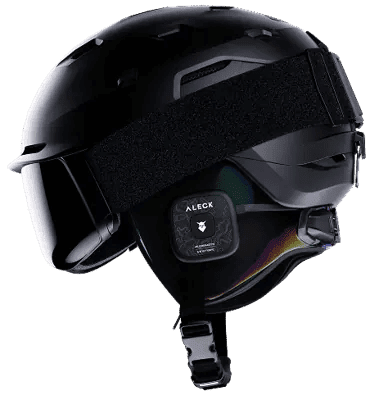
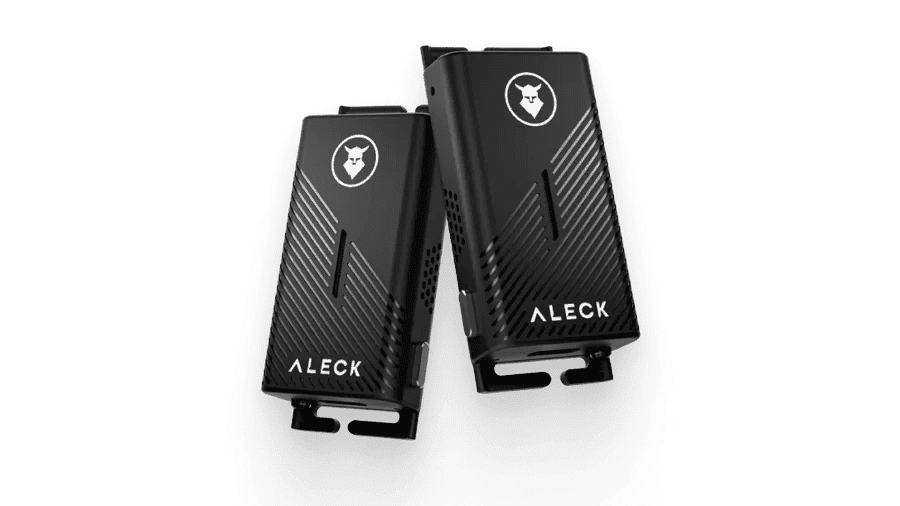
Support for Aleck Punks.
Open Ear Headphones
Download Aleck App
To continue, please download the Aleck app from the App Store or the Google Play Store.
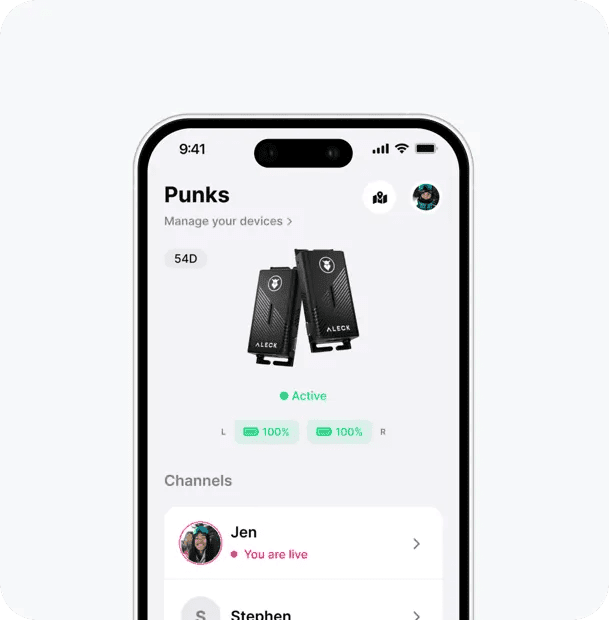
Follow Instructions in App
If this is your first time using the app, complete the onboarding process.
If not, tap «Add Device», then tap «Aleck Punks» and follow the process.
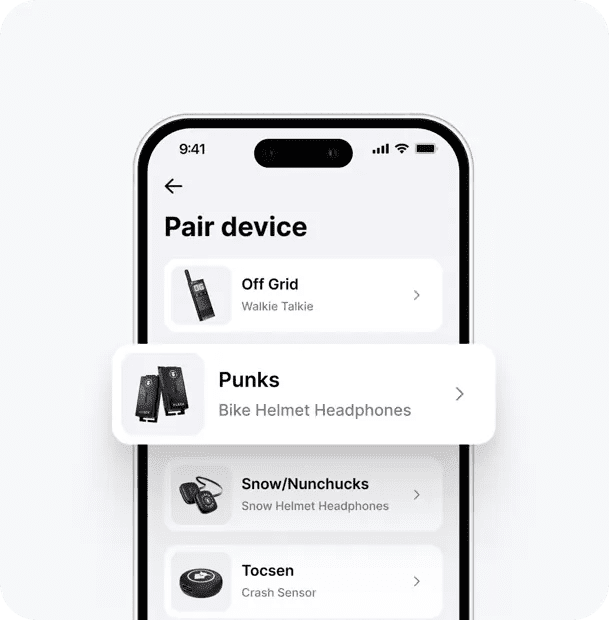
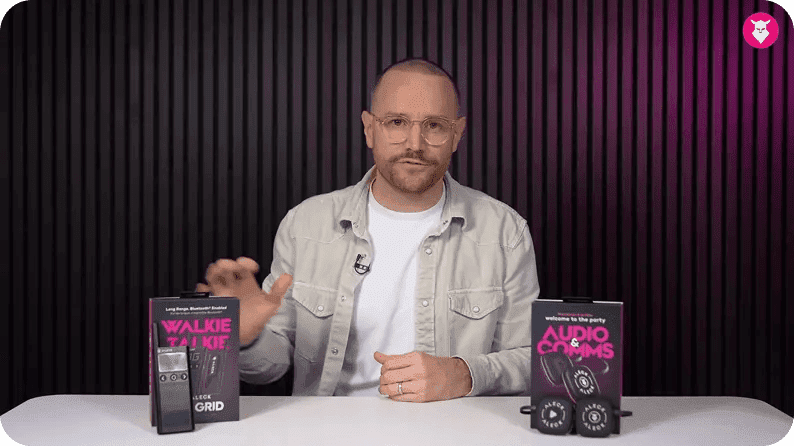

Power On
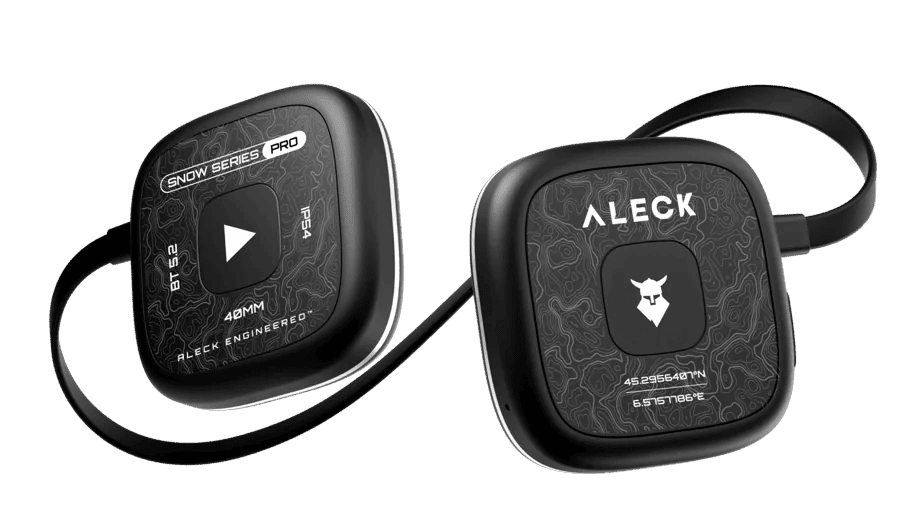
Left and Right units power on separately. Press & Hold Play & Comms for 2s to Power On

Power Off
Press & Hold Play (right) for 2s to Power off BOTH units

Volume Cycle
Press & Hold to cycle through volume levels

Play / Pause
Single Tap Right

Track Forward
Double Tap Right

Track Backward
Triple Tap Right

App Un/Mute
Single Tap Left

Answer / End Call
Single Tap Right

Call Un/Mute
Double Tap Right

Voice Assistant
Press & Hold 2 seconds activates Siri of Google Assistant

Factory Reset
Press & Hold Right and Left buttons together for until both LED's flash purple
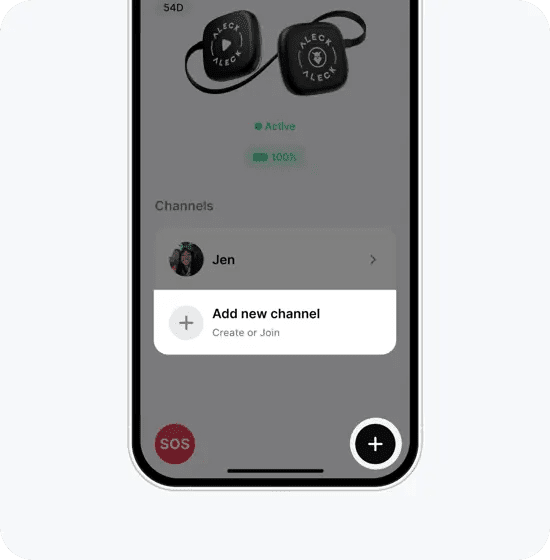
Tap to “+” or "Add new channel" button
Before you need to register.
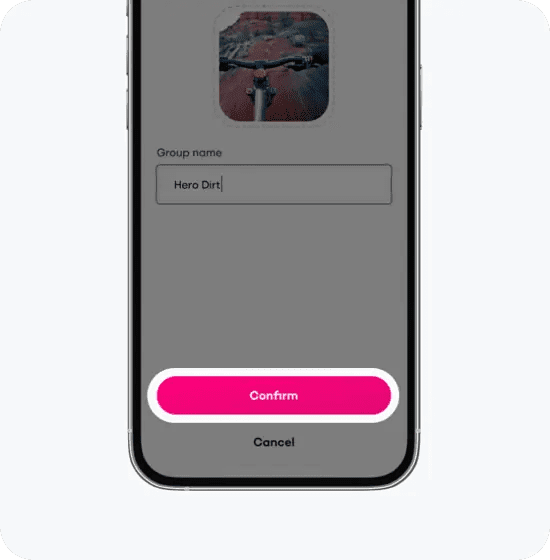
Add Channel Details
Choose a picture and a name, and tap save.
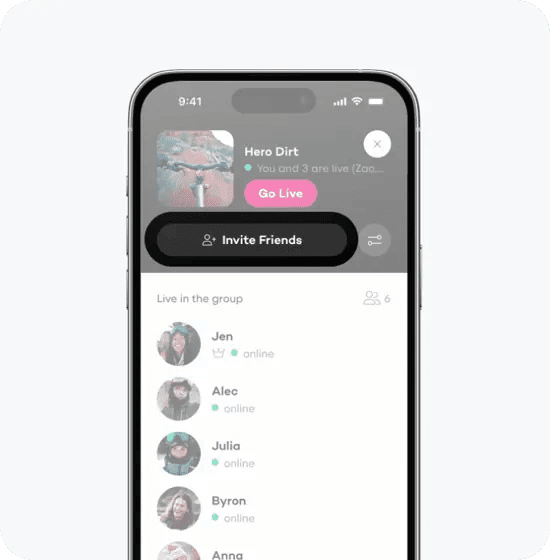
Invite friends
To invite a friend, tap on the invite button on the right.